 United States site instead?
Key Replacement
Replace Hardware Key with a Soft Key
1. Install CodeMeter Driver version 5.21 for Archicad 10 to Archicad 19
on to all computers that need to run Archicad as well as your server if you are running CodeMeter server licences.
This CodeMeter Driver version can be used with Archicad version 10 to version 19.
Remove the keyplug before you are installing the driver.
This CodeMeter driver supports:
- Windows 8.1, Windows 8, Windows 7,
- Mac OS X 10.10.3, Mac OS X 10.10.2, Mac OS X 10.9.5,
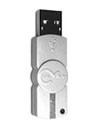
| Download | Windows 32-bit | Windows 64-bit | Mac OS X | Last modified |
| CodeMeter Driver version 5.21 |
 21.1 MB |
24.1 MB |
24.3 MB |
Apr 27, 2015 |
2. Install License Manager Tool
on to your workstation if you are running CodeMeter single licence hardware key(s) or on to your server if you are running CodeMeter server licences.
Windows The License Manager Tool is a 64-bit application and will not work on old 32-bit operating systems.
Mac OS X The License Manager Tool runs on Mac OS X 10.7 or higher.
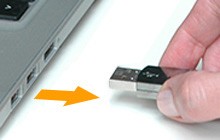
Unplug
If you have a Hardware Key, it must be unplugged during the installation of the License Manager Tool.
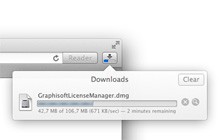
Download
Download the License Manager Tool (~100 MB file).

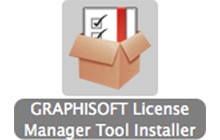
Install
Install the License Manager Tool. Restart Computer if prompted.
Run
Start the License Manager Tool. With default install settings the tool is located at:
Applications/Graphisoft/GRAPHISOFT License Manager
3. Sign in to License Manager Tool
-
- If you have a Graphisoft ID, use it to sign in.
- If you don’t, click Create account to generate a Graphisoft ID.
- You will be prompted to provide your Authentication Key.


Note: If you have already used a BIMx product requiring authentication, you will not have to authenticate yourself again for the License Manager Tool, provided you are using the same GRAPHISOFT ID.

If you are the first one to use the Authentication Key, the Create Company Account dialog box appears.

Enter or verify your company name.
Click Accept to become your company’s Admin, who will manage the company account. The Admin will be notified via email if one of your co-workers wishes to join the company account as a Member. If you are not authorised to do this please contact your company manager.
If the Join Company Account dialog box appears when you enter the Authentication Key, this means your Company Account has already been created.
Click Join Account. Your Company Admin will be automatically notified of your action.

- Once you are approved, sign in to the License Manager Tool. Here, you can download the Software Keys to which the Admin has given you access.
4. Replace the Key
If you are replacing a WIBU hardware server key (multiple licences) with a Software server key (multiple licences) then you will need to do this part on your server running the present WIBU hardware server key.
If you are replacing a single WIBU hardware key with a single Software key you can do this part on your workstation.
- In License Manager Tool, you must sign in using your GRAPHISOFT ID, if you have not already done so.
- From the list at the top of the License Manager, select the Hardware Key key you will replace.

- The contents of the selected key are listed in the Current Licenses section.
- Click Continue
- The Update Multiple Keys dialog box appears, listing the Source key (the Hardware Key) and the Target key (the new Software Key, located in the Company License Pool, which will replace it).
- A “Source Key” is a protection key whose entire content will be moved to a Target key.
- A “Target Key” is a protection key onto which the content will be placed.

- Click Start to carry out the key replacement.
- Licenses on the Hardware Key are moved to the new Software Key, located in the Company License Pool.
- Destroy WIBU Key following successful Soft Key replacement.
- The new Software Key will be available after a few minutes. Click Refresh on the License Manager Tool interface to see the list of available keys.
- If you are signed in as the Admin, you will be able to download the new Software key. If you are signed in as a Member, you must request the Admin to grant you access to the new software key.
- To download the new Software Key to your computer, follow the steps at: Download a Software Key from the Company License Pool.