 United States site instead?
To verify the licensed use of the software from the user’s computer, it is necessary to collect the following information:
- Screenshot of the window “License Information” (menu Help -> License Information).
In some cases, it is necessary to stretch the window to display complete information.
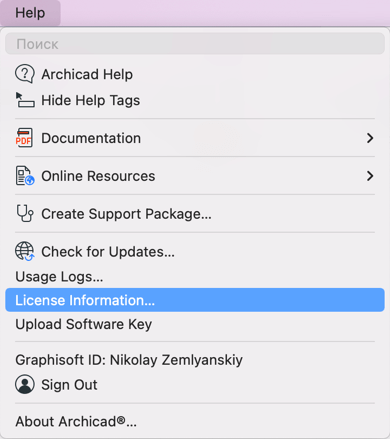
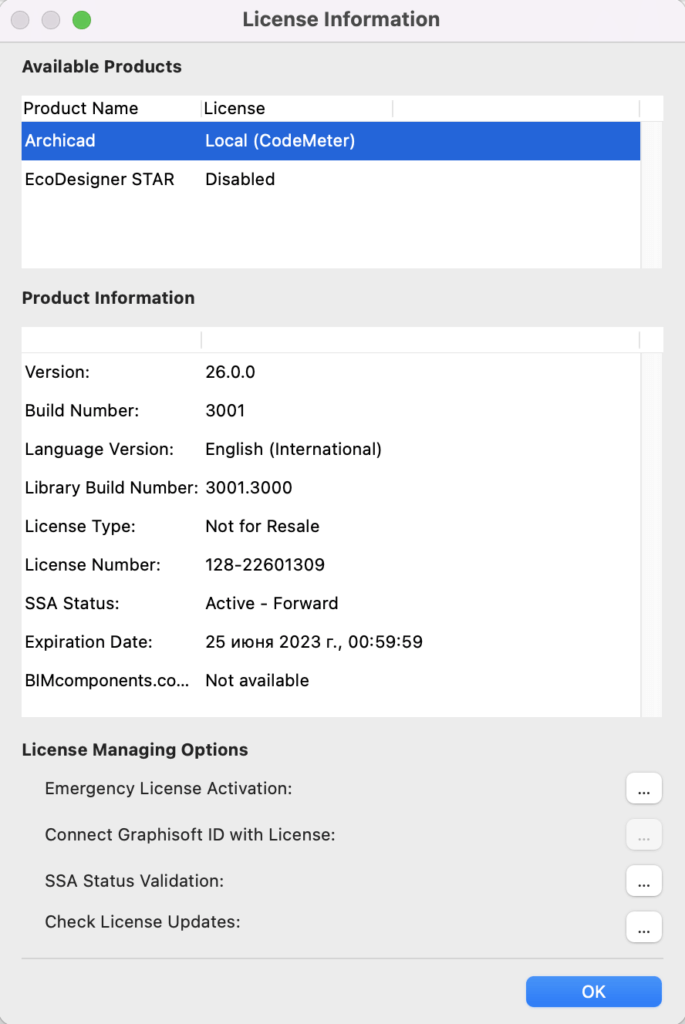
- A copy or screenshot of the file ProductVersion.xml. The file is located in the folder “Archicad (version number)”. Perhaps the folder name is different due to manual installation. If several versions are used, then you need to send this file from all installations.
- Mac address of the computer. How to find the mac address in different operating systems:
Mac
- Select Apple menu > System Preferences.
- Click Network.
- Click the network you would like to view the MAC address for.
- Click Advanced.
- Click Hardware.
- The MAC address is listed below.
Windows
- Click Start > Control Panel > Network and Internet > Network and Sharing Center.
- Click the network you would like to view the MAC address for.
- Click Details.
- The MAC address is listed under the Physical Address heading.